Configuring the Wi-Fi Servo Controller 2 for use over the Internet
It is often necessary to gain control of the Wi-Fi Servo Controller 2 over the Internet. This guide will provide a tutorial for a typical setup. A high speed Internet connection such as cable or DSL is required for this tutorial. A router is also required. Please note that this is only a guide. Your hardware might not match up exactly to the info provided but it should be a good starting point.
To get started make sure your Wi-Fi Servo Controller 2 is attached to your network and an IP address has been assigned. Take note of this IP address.
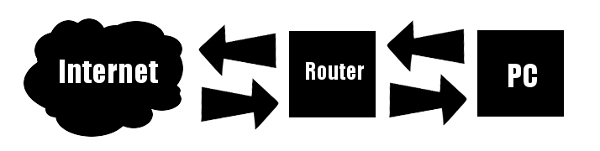
Connection Diagram
Routers
In this guide a router is referred to in many places. What this guide considers a router is the typical Wi-Fi/Switch/Router/Firewall device most commonly sold in stores today and what you most likely will find in your own network. Netgear, LinkSys and D-Link are some of the most popular brands. These devices are great for home networks because they consolidate the necessary hardware into a single package and are easy to setup via a central configuration page. This configuration page can often be accessed by pointing your browser to the routers IP address. Open a browser and go to this page now. Often this address will be 192.168.1.1 however consult your routers manual for the exact address. Once displayed various options should be displayed for the router, look for a section on "port forwarding".
Port forwarding
To understand how port forwarding works it is necessary to understand how networks are usually set up. Typically a home or business network is setup as an isolated private network separate from the Internet. When you subscribe to an ISP they provide you with a single address and line of access to the WAN or Internet. These services often include a modem of some type. If you wanted you could connect the modem directly to a PC however this would limit access to a single computer. Attaching a router to the modem and the computer to the router will allow for many devices to share a single IP address on the WAN however these devices will have unique address on the LAN. To the outside WAN network it looks like all traffic is coming from one address although may be coming from multiple addresses. When traffic is going from the LAN to the WAN or from the LAN to another device on the LAN there are no issues since there are no shared addresses. However when traffic needs to go from the WAN to the LAN a mechanism to distinguish what device the traffic is meant for is needed. This is where port forwarding comes in.
Port forwarding is a method of allowing packets arriving on a particular port to be sent to a specific device on a private network.In the port forwarding configuration two things must be specified; port and IP address. The Wi-Fi Servo Controller 2 resides on port 10001, enter this in the the routers configuration. The next thing to setup is the IP address. This is the IP address currently assigned to the Wi-Fi Servo Controller 2 on the local network. These two settings together tell the router to forward any packet arriving on port 10001 to the specified LAN IP address.
Accessing Remotely
After you have configured your router for port forwarding accessing the controller remotely is very similar to accessing it on a local network except that you would use the WAN IP address of your network.